Binance Tax Guide
Summ has integrated Binance into our platform to help users easily calculate their cryptocurrency tax obligations. Users can upload via an API or CSV import following the instructions in this guide.
 Summ
Summ Summ supports two main options for uploading data from Binance so you can calculate your Binance taxes. Binance has an easy-to-use API that allows you to automatically upload data, they also offer CSV history downloads allowing you to upload the files manually.
Import via CSV
On Binance:
- Sign in to your Binance account and click on Wallet > Overview on the navigation bar
- Next click on 'Transaction History' (in the top right corner)
- Now click on 'Generate all statements' (in the top right corner)
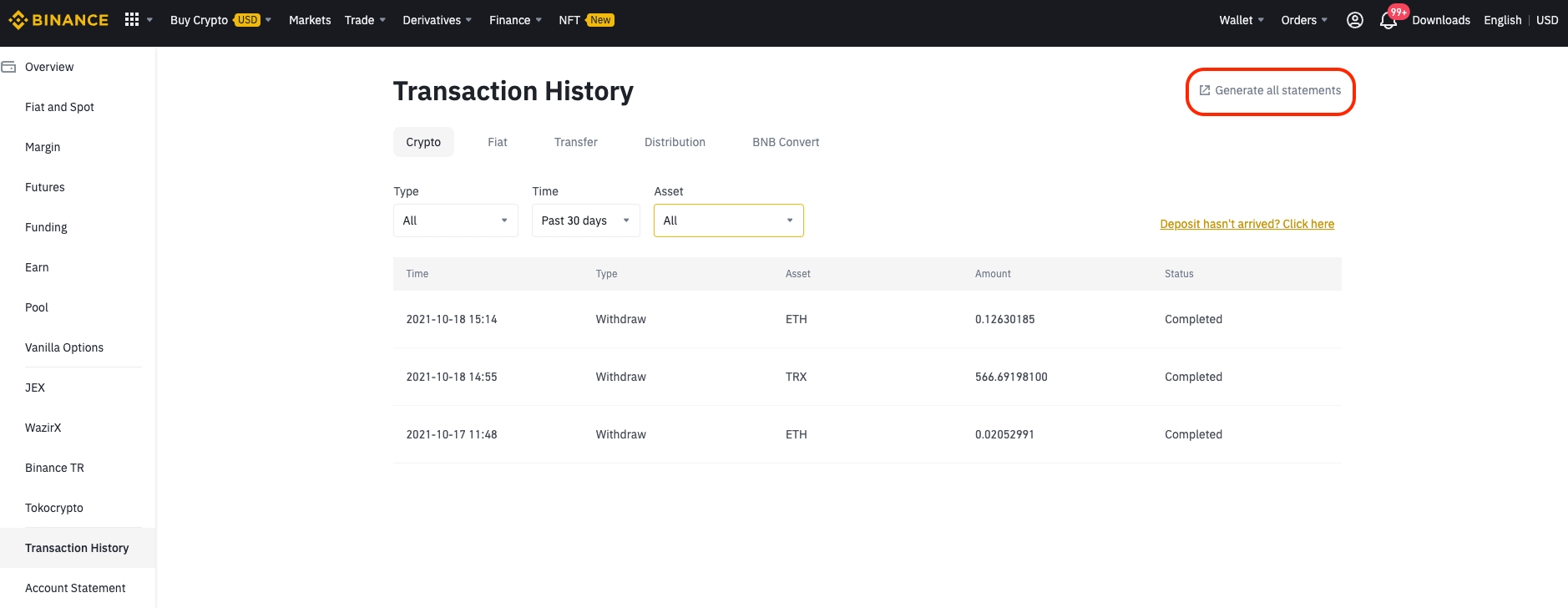
- On 'Range' select 'Customize' and enter the start/end date of each year (max 3-month history can be downloaded at a time)
- Make sure the 'Hide transfer record' option is checked as below
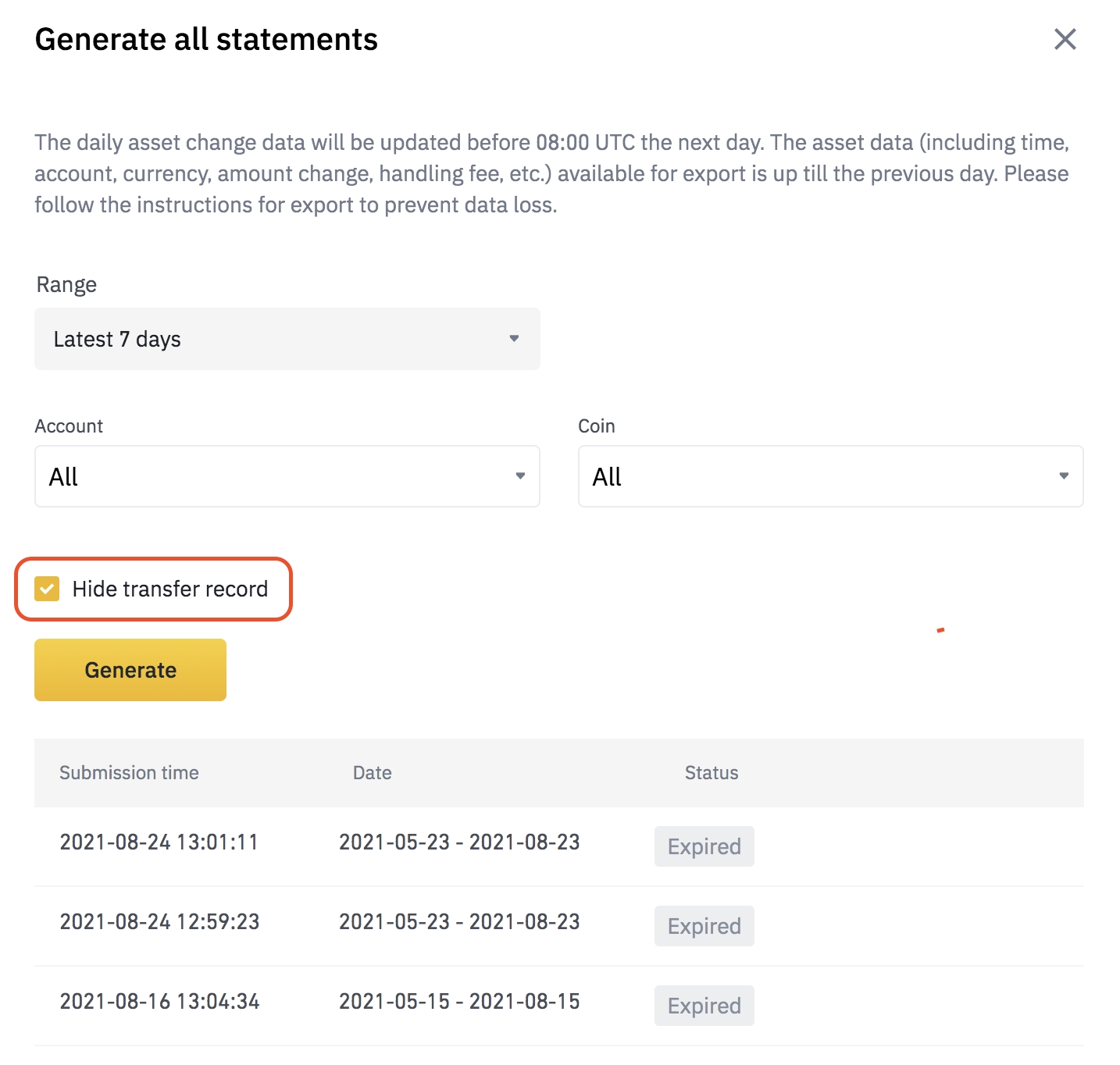
- Click on 'Generate' and wait for the report to be generated - this may take some time
- Repeat the export for each period you have been trading on Binance
- If the file is a '.zip' or '.tar.gz' format you will need to extract the contents of the compressed folder to obtain the raw '.csv' before uploading
On Summ:
- Log in and navigate to the 'Import Data' section of your account
- From the dropdown menu select Binance, and then choose 'Upload files'
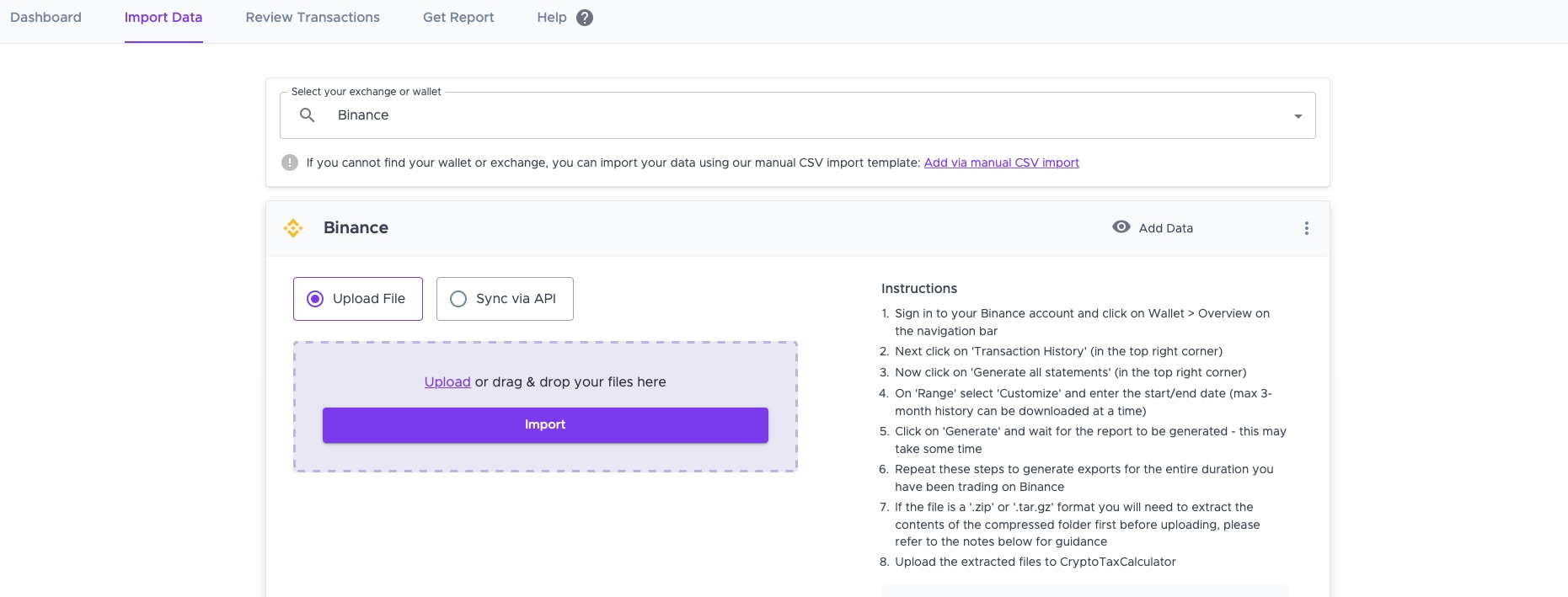
- Import all the extracted files that you downloaded from Binance
Create and add API keys
On Binance:
- Sign in to your Binance account
- On the top right of the navbar hover over the 'Profile' icon and click on 'API Management' from the dropdown
- Enter the label for a new API as 'Summ' and click on ‘Create API’ (yellow button)
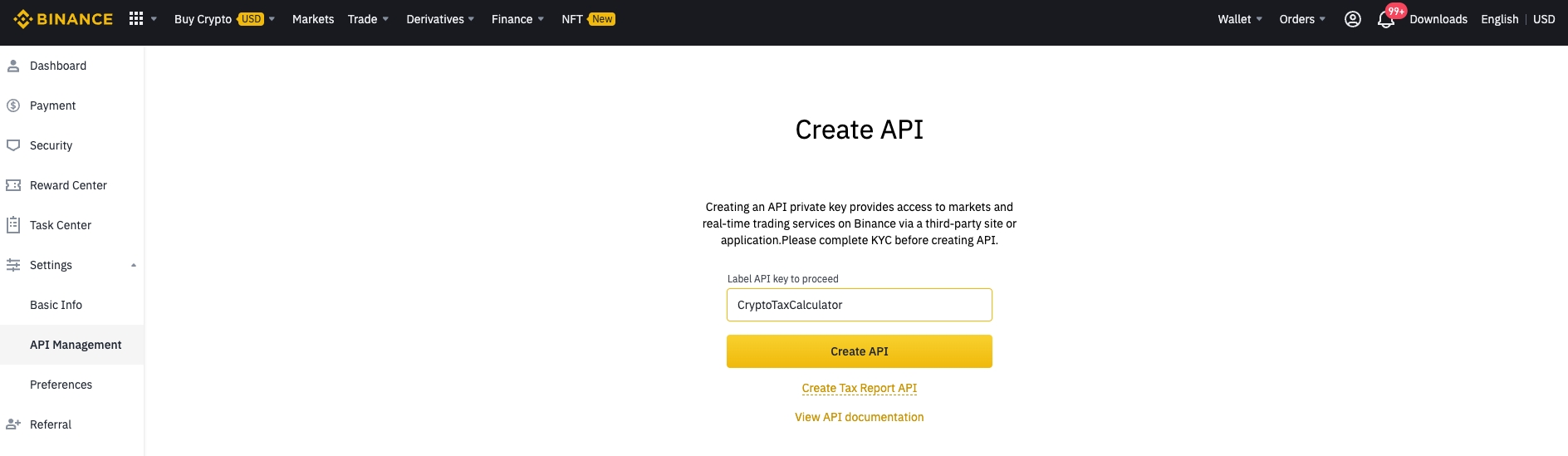
- You may have to enter some verification information
- Once created, copy the 'API Key' and 'Secret Key'
- Click Edit restrictions and uncheck 'Enable Spot & Margin Trading'. Also, be sure that 'Enable Withdrawals' is unchecked. Only the 'Enable Reading' option should be checked!
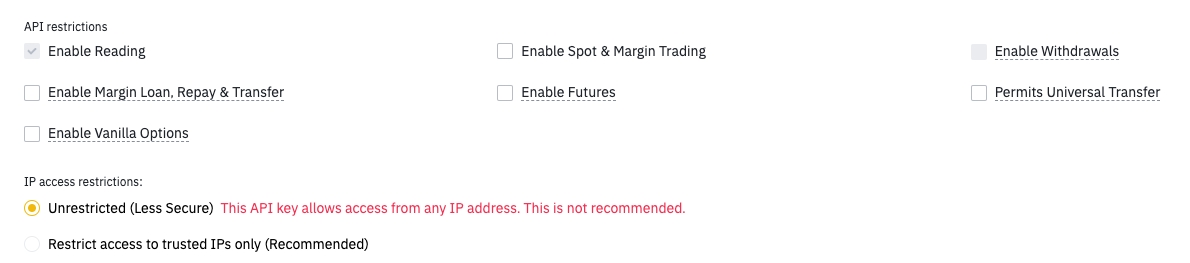
- Leave the IP access restriction selection as 'Unrestricted'
- Syncing this API can take approximately 20 minutes due to rate limitations on Binance's side
On Summ:
- Log in and navigate to the 'Import Data' section of your account
- From the dropdown menu select Binance and then choose 'Sync via API'
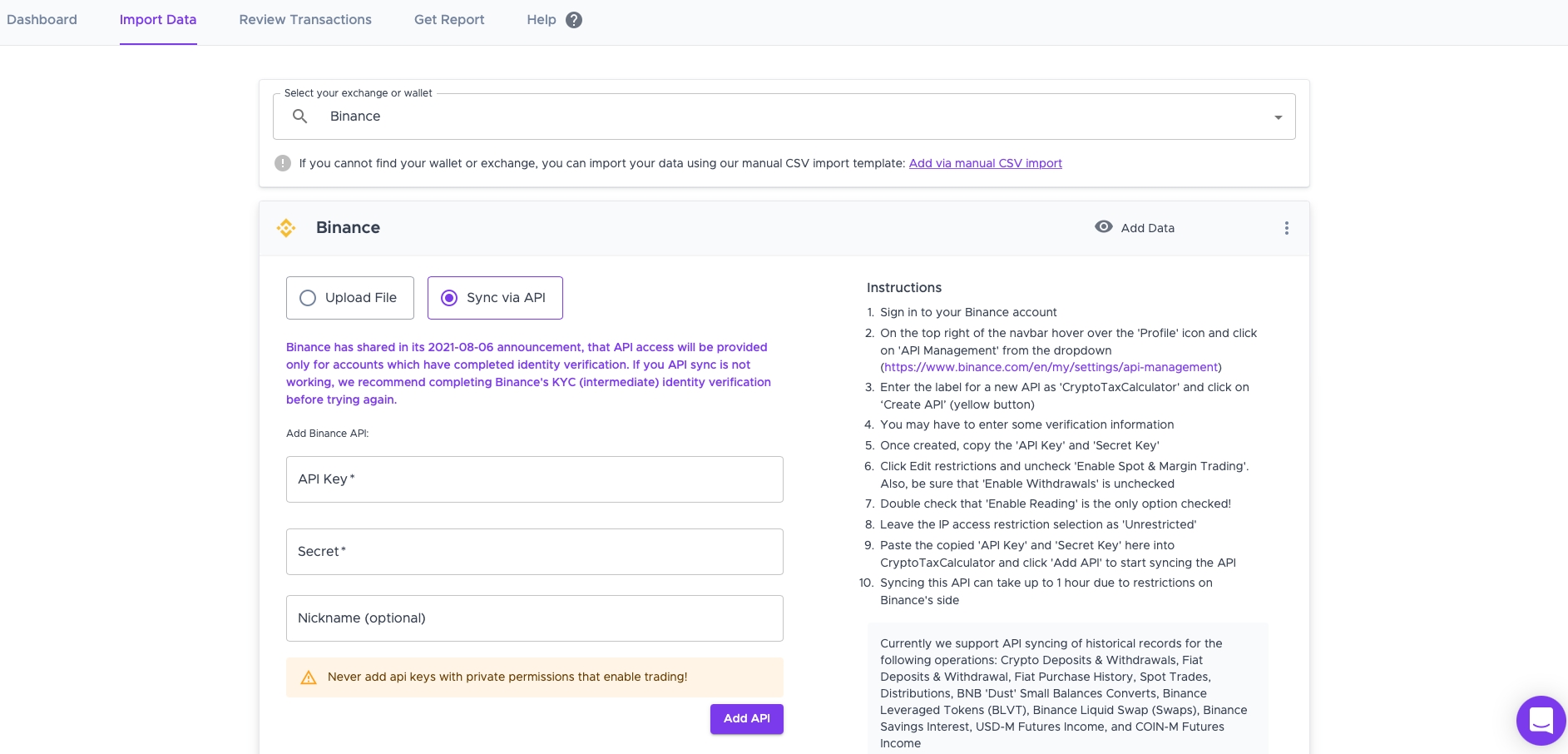
- Paste the copied 'API Key' and 'Secret Key' from Binance into the corresponding form fields and click 'Add API'
Wrapping Up
That's it, from the two options you can upload your transactions from Binance to calculate your taxes using Summ. If you find that you are missing some transactions you can upload these transactions manually using our Simple or Advanced manual CSV import.