



.webp)
- Tax agencies can track your %blockchainName% transactions, so it’s essential to file your crypto taxes properly. You owe tax any time you sell, swap or dispose of your %blockchainCode% for a profit.
- Transaction data from the %blockchainName% can be downloaded using a block explorer, but analysing this data yourself can be difficult, time consuming and prone to errors.
- Alternatively, you can use Crypto Tax Calculator, which automatically syncs with the %blockchainName% blockchain and other platforms like exchanges to provide you with a comprehensive tax report.

If you’ve been using %blockchainName%, it’s important to understand how to report your crypto taxes. Like most blockchains, %blockchainName% does not automatically report, calculate, or issue tax forms for you. It’s up to users to report their gains, losses, and income based on their activity. This must include all blockchains and exchanges you’ve transacted on, not just %blockchainName%. The good news is that Crypto Tax Calculator makes calculating your %blockchainName% and crypto taxes quick and easy by automatically importing your data and generating comprehensive tax reports.
Quick steps
1. Create an account on Crypto Tax Calculator or log in if you already have one.
2. Select %blockchainName% in the Accounts list.
3. Import your %blockchainName% transactions using API or CSV.
4. Let our software calculate your gains, losses, and income.
5. Download your tax report and file it with your taxes.

Disclaimer: The information in this guide is general in nature and not written for a specific tax jurisdiction or audience.
Do I need to pay taxes on %blockchainName%?
If you have been transacting on %blockchainName% during the tax year, or sold any %blockchainCode%, then it’s likely you will need to pay tax based on your trading activity.
Typically, anytime you sell crypto for fiat, trade crypto-to-crypto, or earn crypto income (e.g., through staking or rewards on %blockchainName%), it is considered a taxable event in most countries.
The exact tax you owe (capital gains or income tax) will depend on your local regulations and the specifics of each transaction. Check our list of local crypto tax guides for details on how cryptocurrency is taxed in your jurisdiction.
Do I have to pay tax if I only bought %blockchainCode% but didn’t sell?
In most parts of the world, you do not pay any tax when you purchase crypto.
It is only when you later dispose of that crypto – i.e., sell it or trade it for another asset – that a taxable event occurs and you need to report it on your tax.
What %blockchainName% transactions are taxable?
The following are common transactions on blockchains like %blockchainName% which are relevant to tax:
Most countries typically tax proceeds earned from selling investments differently from money earned as income. In crypto, you may be subject to both capital gains and income tax, depending on the nature of your transaction:
Capital Gains tax events from %blockchainName%
Whenever you sell %blockchainCode% or make a crypto-to-crypto swap using the %blockchainName% blockchain, you are disposing of an asset.
If the value of the crypto at the time of sale/trade is higher than when you acquired it, you have a taxable capital gain.
If it’s lower, you have a capital loss (which can often be used to offset other gains).
Crypto Tax Calculator will automatically calculate these gains and losses for each trade using your imported transaction data. It will also account for fees according to your local tax rules.
Income tax from %blockchainName%
If you received crypto as a reward on %blockchainName% for activities such as staking, lending, or yield farming – those tokens are usually considered income.
The value of the crypto at the time and date you received needs to be reported as income. It also forms the cost basis if you later sell the asset.
Crypto Tax Calculator will automatically categorise income tax events and treat them according to your local tax rules.


How to calculate %blockchainName% taxes with Crypto Tax Calculator
1. Import your data
First, you will need to import your %blockchainName% transaction data to Crypto Tax Calculator. Here’s how:
Sync via API
This method uses a secure API feed to transfer your transaction data from the %blockchainName% to Crypto Tax Calculator. Using an API ensures that your data will be updated over time, so that any change in your %blockchainName% balance is reflected in Crypto Tax Calculator.
- Sign in to Crypto Tax Calculator or create an account. Navigate to the Accounts tab and click + Add accounts.
- Select %blockchainName% from the list of integrations. Click on Sync via API.
- Enter your Ethereum wallet address. Add an optional nickname, and click 'Add Wallet'.
- Crypto Tax Calculator automatically imports your %blockchainName% transaction history from the blockchain. This may take a few seconds to a few minutes depending on the number of transactions. You’ll see a confirmation when all data is imported.
Generate your tax report
Once your %blockchainName% data is imported to Crypto Tax Calculator, you can calculate your taxes with a few clicks.
- Import accounts.
Add any other exchange accounts, wallets or transaction data to Crypto Tax Calculator. You will need to upload your entire crypto transaction history for an accurate report. This includes all wallets, blockchains and exchange accounts. - Review transactions
While Crypto Tax Calculator does the hard work for you, it may flag some missing data or errors, which you will need to review to ensure accuracy. - Get your tax report
Generate a comprehensive tax report ready for your accountant or local tax authority.
If you're new to Crypto Tax Calculator, try our Getting Started Guide for an overview of how the platform works. If you need assistance at any stage, click the chat icon in the bottom right corner to begin a live chat with our expert customer service team.
How to file your %blockchainName% tax report
Here’s what to do with your exciting and new crypto tax report:
- Review your tax report. After importing, you can generate a tax report for %blockchainName% and any other accounts you linked. This report will detail your net capital gains, losses, and income from crypto for your chosen financial year. Review it to make sure everything looks correct. If something looks off, return to the Review tab to ensure all transactions are categorized correctly; check the Accounts tab to ensure all your accounts and their transactions have been added.
- Download and complete the necessary tax forms. Crypto Tax Calculator can produce specific forms or summaries needed for filing. For example, if you live in the US, it can produce a report ready to upload to TurboTax. There are also specific forms like Form 8949 and Schedule D that contain the relevant information for crypto. Crypto Tax Calculator’s reports are designed to be tax-office compliant, making this straightforward.
- File before the deadline. Make sure you file your taxes before the deadline in your country. Properly reporting your %blockchainName% crypto activity will keep you compliant and help you avoid any penalties.
- Tax agencies can track your %exchangeName% transactions, so you need to file your crypto taxes properly. You owe tax any time you sell, swap or dispose of your crypto for a profit.
- %exchangeName% does not issue tax reports, so you will need to gather the data and calculate taxes yourself.
- Alternatively, you can use Crypto Tax Calculator, which automatically syncs with your %exchangeName% and other crypto platforms to provide you with a comprehensive tax report.
If you’ve been using %exchangeName%, it’s important to understand how to report your crypto taxes. Like most exchanges, %exchangeName% does not automatically report, calculate, or issue tax forms for you. It’s up to users to report their gains, losses, and income from the platform.
The good news is that Crypto Tax Calculator makes calculating your %exchangeName% taxes quick and easy by automatically importing your data and generating comprehensive tax reports.
Quick steps
1. Create an account on Crypto Tax Calculator or log in if you already have one.
2. Select %exchangeName% in the Accounts list.
3. Import your %exchangeName% transactions using API or CSV.
4. Let our software calculate your gains, losses, and income.
5. Download your tax report and file it with your taxes.
Disclaimer: The information in this guide is general in nature and not written for a specific tax jurisdiction or audience.
Do I need to pay taxes on %exchangeName%?
Yes, you will likely need to pay tax if you used %exchangeName% during the tax year.
You will owe capital gains tax or income tax, depending on the nature of your transactions, and whether or not you receive any token rewards from %exchangeName%.
The exact tax you owe will depend on your local regulations and the specifics of each transaction. See our list of local crypto tax guides for details on how cryptocurrency is taxed in your jurisdiction.
How are %exchangeName% transactions taxed?
The taxation of DeFi platforms like %exchangeName% can vary depending on your tax jurisdiction.
Most countries typically tax proceeds earned from selling investments differently from money earned as income. You may be subject to both capital gains (CGT) and income tax, depending on the nature of your transaction.
Here’s how transactions on DeFi platforms like %exchangeName% might be treated:
%exchangeName% capital gains tax (CGT) events
%exchangeName% income tax events
%exchangeName% that are not taxed
Does %exchangeName% report to the IRS?
%exchangeName% is not required to report user activity to the IRS, however, that does not mean your transactions can’t be traced.
Blockchains are public ledgers, which makes it easy to track a wallet's activity. The IRS uses sophisticated data collection and analysis to match your real-world identity with your on-chain activity.
How to calculate %exchangeName% taxes with Crypto Tax Calculator
1. Import your data
First, you will need to import your %blockchainName% transaction data to Crypto Tax Calculator. Here’s how:
Sync via API
This method uses a secure API feed to transfer your transaction data from the %blockchainName% to Crypto Tax Calculator. Using an API ensures that your data will be updated over time.
- Sign in to Crypto Tax Calculator or create an account. Navigate to the Accounts tab and click + Add accounts.
- Select %blockchainName% from the list of integrations. Click on Sync via API.
- Enter your Ethereum wallet address. Add an optional nickname, and click 'Add Wallet'.
- Crypto Tax Calculator automatically imports your %blockchainName% transaction history from the blockchain. This may take a few seconds to a few minutes depending on the number of transactions. You’ll see a confirmation when all data is imported.
2. Generate your tax report
Once your %blockchainName% data is imported to Crypto Tax Calculator, you can calculate your taxes with a few clicks.
- Import accounts.
Add any other exchange accounts, wallets or transaction data to Crypto Tax Calculator. You will need to upload your entire crypto transaction history for an accurate report. This includes all wallets, blockchains and exchange accounts. - Review transactions
While Crypto Tax Calculator does the hard work for you, it may flag some missing data or errors, which you will need to review to ensure accuracy. - Get your tax report
Generate a comprehensive tax report ready for your accountant or local tax authority.
How to file your %blockchainName% tax report
Here’s how to file your crypto tax report with your local tax authority:
1. Review your tax report
After importing, you can generate a tax report for %blockchainName% and any other accounts you linked. This report will detail your net capital gains, losses, and income from crypto for your chosen financial year.
Review it to make sure everything looks correct. If something looks off, return to the Review tab to ensure all transactions are categorized correctly; check the Accounts tab to ensure all your accounts and their transactions have been added.
2. Download and complete the necessary tax forms
Crypto Tax Calculator can produce specific forms or summaries needed for filing. Simply check the options in the Downloads section of the tax report and choose the one you need.
For example, if you live in the US, it can produce a report ready to upload to TurboTax, as well as forms like Form 8949 and Schedule D that are pre-filled and contain the relevant information for crypto.
Crypto Tax Calculator’s reports are designed to be tax office compliant and make this straightforward.
3. File before the deadline
Make sure you file your taxes before the deadline in your country. Properly reporting your %blockchainName% crypto activity will keep you compliant and help you avoid any penalties.

If you’ve been using %exchangeName%, it’s important to understand how to report your crypto taxes. Like most exchanges, %exchangeName% does not automatically report, calculate, or issue tax forms for you. It’s up to users to report their gains, losses, and income from the platform.
The good news is that Crypto Tax Calculator makes calculating your %exchangeName% taxes quick and easy by automatically importing your data and generating comprehensive tax reports.
Quick steps
1. Create an account on Crypto Tax Calculator or log in if you already have one.
2. Select %exchangeName% in the Accounts list.
3. Import your %exchangeName% transactions using API or CSV.
4. Let our software calculate your gains, losses, and income.
5. Download your tax report and file it with your taxes.
Disclaimer: The information in this guide is general in nature and not written for a specific tax jurisdiction or audience.
Do I need to pay taxes on %exchangeName%?
If you have been transacting on %exchangeName% during the tax year, then it’s likely you will need to pay tax based on your trading activity.
Typically, anytime you sell crypto for fiat, trade crypto-to-crypto, or earn crypto income (e.g., through staking or rewards on %exchangeName%), it is considered a taxable event in most countries.
The exact tax you owe (capital gains or income tax) will depend on your local regulations and the specifics of each transaction. Check our country-specific crypto tax guides for details on how cryptocurrency is taxed in your jurisdiction.
Do I have to pay tax if I only bought crypto on %exchangeName% but didn’t sell?
In most parts of the world, you do not pay any tax when you purchase crypto.
It is only when you later dispose of that crypto – i.e., sell it or trade it for another asset – that a taxable event occurs.
What %exchangeName% transactions are taxable?
The following are common transactions on cryptocurrency exchanges like %exchangeName% which are relevant to tax:
Most countries typically tax proceeds earned from selling investments differently from money earned as income. In crypto, you may be subject to both capital gains and income tax, depending on the nature of your transaction:
Capital Gains tax events on %exchangeName%
Whenever you sell or make a crypto-to-crypto swap on %exchangeName%, you are disposing of an asset.
If the value of the crypto at the time of sale/trade is higher than when you acquired it, you have a taxable capital gain.
If it’s lower, you have a capital loss (which can often be used to offset other gains).
Crypto Tax Calculator will automatically calculate these gains and losses for each trade using your imported transaction data. It will also account for fees according to your local tax rules.
Income tax on %exchangeName%
If you received crypto as a reward on %exchangeName% for activities such as staking, lending, or referral bonuses – those tokens are usually considered income.
The value of the crypto at the time and date you received needs to be reported as income. It also forms the cost basis if you later sell the asset.
Crypto Tax Calculator will automatically categorise income tax events and treat them according to your local tax rules.
Does %exchangeName% report to the IRS?
If you registered with %exchangeName% as a resident of the United States, then starting in the 2025 tax year, the exchange is required to report your customer data and transactions to the IRS.
Other tax authorities around the globe, like the ATO, HMRC, CRA are also engaged in data-sharing programmes with exchanges like %exchangeName%. They may also use blockchain analytics tools, data-sharing between banks and KYC and AML data to match your identity with your trading activity on %exchangeName%.
Where do I find %exchangeName% tax forms?
Exchanges like %exchangeName% do not provide tax forms with a neat breakdown of your tax obligations. This is because tax rules vary between countries and jurisdictions, which requires specialised software to handle additional complexities of crypto tax. Additionally, any assets you transfer onto the platform will be missing an accurate cost basis.
Fortunately, you can connect your exchange account to Crypto Tax Calculator via API or upload your transaction data using CSV. Crypto Tax Calculator will then combine this data with any other accounts or wallets you connect to provide you with an accurate tax report ready to submit to your tax agent, accountant or local tax authority.
You can connect as many supported exchange accounts, wallets or blockchains as you like, with reports available for all previous years on a single plan.
How to calculate %exchangeName% taxes with Crypto Tax Calculator
1. Import your data
First, you will need to import your %exchangeName% transaction data to Crypto Tax Calculator. Here are the two main methods:
Automatic API Import
This method uses a secure API feed to transfer your transaction data to Crypto Tax Calculator. Using an API ensures that your data will be updated over time, so that any change in your %exchangeName% balance is reflected in Crypto Tax Calculator.
- Sign in to Crypto Tax Calculator or create an account. Navigate to the Accounts tab and click + Add accounts.
- Select %exchangeName% from the list of exchanges. Click on Sync via API.
- Follow the instructions on the right-hand side to find your API key on %exchangeName%.
- Input your API details and click Secure Connect.
- Once authorized, Crypto Tax Calculator will automatically import your %exchangeName% transaction history. This may take a few seconds to a few minutes depending on the number of transactions. You’ll see a confirmation when all data is imported.
CSV File Upload
Not all exchanges provide easy API access; some users might prefer CSV. Sign in to Crypto Tax Calculator or create an account. Navigate to the Accounts tab and click + Add accounts.
- Select %exchangeName% from the list of exchanges. Click on Upload File.
- Follow the instructions on the right-hand side to find and download your transaction data on %exchangeName%.
- Click Import %exchangeName% CSV to upload your transaction data. Choose your file using the browser or drag and drop it into the window.
- Click Import %exchangeName% CSV to complete the upload.
- Verify the data. The software will parse the CSV and import all transactions. Double-check that the transaction details match your expectations from %exchangeName%. Crypto Tax Calculator will alert you if any data seems missing or if there are errors in the file.
Note: Some exchanges split different types of transactions into multiple files or have separate histories for sub-accounts. Make sure to import all relevant files to cover your complete trading history.
2. Generate your tax report
Once your %exchangeName% data is imported to Crypto Tax Calculator via API or CSV, you can calculate your taxes with a few clicks.
- Import accounts.
Add any other exchange accounts, wallets or transaction data to Crypto Tax Calculator. You will need to upload your entire crypto transaction history for an accurate report. - Review transactions
While Crypto Tax Calculator does the hard work for you, it may flag some missing data or errors, which you will need to review to ensure accuracy. - Get your tax report
Generate a comprehensive tax report ready for your accountant or local tax authority.
If you're new to Crypto Tax Calculator, try our Getting Started Guide for an overview of how the platform works. If you need assistance at any stage, click the chat icon in the bottom right corner to begin a live chat with our expert customer service team.
How to file your %blockchainName% tax report
Here’s what to do with your exciting and new crypto tax report:
- Review your tax report. After importing, you can generate a tax report for %exchangeName% and any other accounts you linked. This report will detail your net capital gains, losses, and income from crypto for your chosen financial year. Review it to make sure everything looks correct. If something looks off, return to the Review tab to ensure all transactions are categorized correctly; check the Accounts tab to ensure all your accounts and their transactions have been added.
- Download and complete the necessary tax forms. Crypto Tax Calculator can produce specific forms or summaries needed for filing. For example, if you live in the US, it can produce a report ready to upload to TurboTax. There are also specific forms like Form 8949 and Schedule D that contain the relevant information for crypto. Crypto Tax Calculator’s reports are designed to be tax-office compliant, making this straightforward.
- File before the deadline. Make sure you file your taxes before the deadline in your country. Properly reporting your %exchangeName% crypto activity will keep you compliant and help you avoid any penalties.
Disclaimer: This guide is for general information only and is not tax advice. Cryptocurrency tax laws vary by region. Please consult a tax professional for advice tailored to your circumstances.”
- Tax agencies can track your %blockchainName% transactions, so it’s essential to file your crypto taxes properly. You owe tax any time you sell, swap or dispose of your crypto for a profit.
- Wallets like %blockchainName% do not issue tax reports, so you will need to gather the data and calculate taxes yourself manually.
- Alternatively, you can use crypto tax software like Crypto Tax Calculator, which syncs with %blockchainName% and your other crypto accounts to calculate your crypto tax.
%blockchainName% is a popular crypto wallet that lets you store and manage your cryptocurrency. If you made trades, earned rewards, or interacted with DeFi using %blockchainName%, you may need to report those transactions on your taxes.
%blockchainName% does not automatically report, calculate, or issue tax forms for you.
The good news is that Crypto Tax Calculator makes calculating your %blockchainName% and crypto taxes quick and easy by automatically importing your data to generate a comprehensive tax report.
Disclaimer: The information in this guide is general in nature and not written for a specific tax jurisdiction or audience.
Do I need to file %blockchainName% taxes?
If you have been using %blockchainName% to trade crypto or use DeFi, then you will likely need to pay tax on those transactions.
The exact tax you owe will depend on whether your transactions are classified as capital gains or income. Check our list of local crypto tax guides for details on how cryptocurrency is taxed in your jurisdiction.
Do I have to pay tax if I only sent crypto to %blockchainName% but didn’t sell?
If you sent crypto to your %blockchainName% wallet and paid transaction fees in crypto (such as Ethereum Gas), then that transaction is a taxable event.
This is because you are taxed any time you dispose of your crypto.
When you pay a network fee in crypto, it is treated as though you sold (i.e., dispose) of your crypto. So even if you only paid a small fee, you will still need to pay a small amount of tax on that transaction.
Crypto Tax Calculator makes it easy to calculate the total tax owed from your %blockchainName% transactions over the tax year.
What %blockchainName% transactions are taxable?
These are how some common transactions using %blockchainName% are taxed:
Most countries typically tax proceeds earned from selling investments differently from money earned as income. In crypto, you may be subject to both capital gains and income tax, depending on the nature of your transaction.
Crypto Tax Calculator categorizes these events for you, based on your tax jurisdiction. This helps ensure that you pay the correct tax rate based on your %blockchainName% transactions, and receive any sort of discounts or allowances based on your local tax rules.
Capital Gains tax events from %blockchainName%
Whenever you dispose of crypto using %blockchainName% you are charged capital gains tax.
Disposals include things like selling crypto, swapping crypto-to-crypto, depositing crypto into DeFi, or paying network fees using crypto.
If the value of the crypto at the time of disposal is higher than when you acquired it, you have a taxable capital gain.
If it’s lower, you have a capital loss (which can often be used to offset other gains).
Crypto Tax Calculator will automatically calculate these gains and losses for each trade using your imported transaction data. It will account for fees according to your local tax rules.
Income tax events from %blockchainName%
If you received crypto as a reward for activities such as staking, lending, or yield farming – those tokens are usually considered income.
The value of the crypto at the time and date you received needs to be reported as income. It also forms the cost basis if you later sell the asset.
Crypto Tax Calculator will automatically categorise income tax events and treat them according to your local tax rules.
How to calculate your %blockchainName% taxes with Crypto Tax Calculator
1. Import your data
First, you will need to import your %blockchainName% transaction data to Crypto Tax Calculator. Here’s how:
Sync via API
- In Crypto Tax Calculator, click “Add Account” and select %blockchainName% or the relevant blockchain (e.g., Ethereum, Solana).
- Copy your wallet’s public address.
- Paste your address.
- Crypto Tax Calculator will scan the blockchain and import all your taxable events: trades, transfers, airdrops, NFT sales, staking rewards, yield farming etc.
- Do this for each address in your wallet.
Upload CSV
If you have a CSV export from a blockchain explorer or the %blockchainName% software, you can upload it manually. However, using the API sync method is usually simpler.
- In Crypto Tax Calculator, click “Add Account” and select %blockchainName% or the relevant blockchain (e.g., Ethereum, Solana).
- Click Import %blockchainName% CSV to upload your transaction data. Choose your file using the browser or drag and drop it into the window.
- Click Import %blockchainName% CSV to complete the upload.
- Verify the transaction details match your expectations from your %blockchainName% activity. Crypto Tax Calculator will alert you if any data seems missing or if there are errors in the file.
Note: If you downloaded your CSV from a block explorer, then you will need to upload a CSV for each public address you have in the wallet.
2. Generate your tax report
Once your %blockchainName% data is imported to Crypto Tax Calculator, you can calculate your taxes with a few clicks.
- Import accounts.
Add any other exchange accounts, wallets or transaction data to Crypto Tax Calculator. You will need to upload your entire crypto transaction history for an accurate report. This includes all wallets, blockchains and exchange accounts. - Review transactions
While Crypto Tax Calculator does the hard work for you, it may flag some missing data or errors, which you will need to review to ensure accuracy. - Get your tax report
Generate a comprehensive tax report ready for your accountant or local tax authority.
Need help? Click the chat icon in the bottom right corner to start a live chat with our expert customer service team. Otherwise, try our Getting Started Guide for an overview of how the platform works.
How to file your %blockchainName% tax report
1. Review your tax report
After importing, you can generate a tax report for %blockchainName% and any other accounts you linked. This report will detail your net capital gains, losses, and income from crypto for your chosen financial year.
Review it to make sure everything looks correct. If something looks off, return to the Review tab to ensure all transactions are categorized correctly; check the Accounts tab to ensure all your accounts and their transactions have been added.
2. Download and complete the necessary tax forms
Crypto Tax Calculator can produce specific forms or summaries needed for filing. Simply check the options in the Downloads section of the tax report and choose the one you need.
For example, if you live in the US, it can produce a report ready to upload to TurboTax, as well as forms like Form 8949 and Schedule D that are pre-filled and contain the relevant information for crypto.
Crypto Tax Calculator’s reports are designed to be tax office compliant and make this straightforward.
3. File before the deadline
Make sure you file your taxes before the deadline in your country. Properly reporting your %blockchainName% crypto activity will keep you compliant and help you avoid any penalties.
- Tax agencies can track your %exchangeName% transactions, so you need to file your crypto taxes properly. You owe tax any time you sell, swap or dispose of your crypto for a profit.
- %exchangeName% does not issue tax reports, so you will need to gather the data and calculate taxes yourself.
- Alternatively, you can use Crypto Tax Calculator, which automatically syncs with your %exchangeName% and other crypto platforms to provide you with a comprehensive tax report.
If you’ve been using %exchangeName%, it’s important to understand how to report your crypto taxes. Like most exchanges, %exchangeName% does not automatically report, calculate, or issue tax forms for you. It’s up to users to report their gains, losses, and income from the platform.
The good news is that Crypto Tax Calculator makes calculating your %exchangeName% taxes quick and easy by automatically importing your data and generating comprehensive tax reports.
Quick steps
1. Create an account on Crypto Tax Calculator or log in if you already have one.
2. Select %exchangeName% in the Accounts list.
3. Import your %exchangeName% transactions using API or CSV.
4. Let our software calculate your gains, losses, and income.
5. Download your tax report and file it with your taxes.
Disclaimer: The information in this guide is general in nature and not written for a specific tax jurisdiction or audience.
Do I need to pay taxes on %exchangeName%?
Yes, you will likely need to pay tax if you used %exchangeName% during the tax year.
You will owe capital gains tax or income tax, depending on the nature of your transactions, and whether or not you receive any token rewards from %exchangeName%.
The exact tax you owe will depend on your local regulations and the specifics of each transaction. See our list of local crypto tax guides for details on how cryptocurrency is taxed in your jurisdiction.
How are %exchangeName% transactions taxed?
The taxation of DeFi platforms like %exchangeName% can vary depending on your tax jurisdiction.
Most countries typically tax proceeds earned from selling investments differently from money earned as income. You may be subject to both capital gains (CGT) and income tax, depending on the nature of your transaction.
Here’s how transactions on DeFi platforms like %exchangeName% might be treated:
%exchangeName% capital gains tax (CGT) events
%exchangeName% income tax events
%exchangeName% that are not taxed
Does %exchangeName% report to the IRS?
%exchangeName% is not required to report user activity to the IRS, however, that does not mean your transactions can’t be traced.
Blockchains are public ledgers, which makes it easy to track a wallet's activity. The IRS uses sophisticated data collection and analysis to match your real-world identity with your on-chain activity.
How to calculate %exchangeName% taxes with Crypto Tax Calculator
1. Import your data
First, you will need to import your %blockchainName% transaction data to Crypto Tax Calculator. Here’s how:
Sync via API
This method uses a secure API feed to transfer your transaction data from the %blockchainName% to Crypto Tax Calculator. Using an API ensures that your data will be updated over time.
- Sign in to Crypto Tax Calculator or create an account. Navigate to the Accounts tab and click + Add accounts.
- Select %blockchainName% from the list of integrations. Click on Sync via API.
- Enter your Ethereum wallet address. Add an optional nickname, and click 'Add Wallet'.
- Crypto Tax Calculator automatically imports your %blockchainName% transaction history from the blockchain. This may take a few seconds to a few minutes depending on the number of transactions. You’ll see a confirmation when all data is imported.
2. Generate your tax report
Once your %blockchainName% data is imported to Crypto Tax Calculator, you can calculate your taxes with a few clicks.
- Import accounts.
Add any other exchange accounts, wallets or transaction data to Crypto Tax Calculator. You will need to upload your entire crypto transaction history for an accurate report. This includes all wallets, blockchains and exchange accounts. - Review transactions
While Crypto Tax Calculator does the hard work for you, it may flag some missing data or errors, which you will need to review to ensure accuracy. - Get your tax report
Generate a comprehensive tax report ready for your accountant or local tax authority.
How to file your %blockchainName% tax report
Here’s how to file your crypto tax report with your local tax authority:
1. Review your tax report
After importing, you can generate a tax report for %blockchainName% and any other accounts you linked. This report will detail your net capital gains, losses, and income from crypto for your chosen financial year.
Review it to make sure everything looks correct. If something looks off, return to the Review tab to ensure all transactions are categorized correctly; check the Accounts tab to ensure all your accounts and their transactions have been added.
2. Download and complete the necessary tax forms
Crypto Tax Calculator can produce specific forms or summaries needed for filing. Simply check the options in the Downloads section of the tax report and choose the one you need.
For example, if you live in the US, it can produce a report ready to upload to TurboTax, as well as forms like Form 8949 and Schedule D that are pre-filled and contain the relevant information for crypto.
Crypto Tax Calculator’s reports are designed to be tax office compliant and make this straightforward.
3. File before the deadline
Make sure you file your taxes before the deadline in your country. Properly reporting your %blockchainName% crypto activity will keep you compliant and help you avoid any penalties.
If you’ve been using %exchangeName%, it’s important to understand how to report your crypto taxes. Like most exchanges, %exchangeName% does not automatically report, calculate, or issue tax forms for you. It’s up to users to report their gains, losses, and income from the platform.
The good news is that Crypto Tax Calculator makes calculating your %exchangeName% taxes quick and easy by automatically importing your data and generating comprehensive tax reports.
Quick steps
1. Create an account on Crypto Tax Calculator or log in if you already have one.
2. Select %exchangeName% in the Accounts list.
3. Import your %exchangeName% transactions using API (where supported) or CSV.
4. Let our software calculate your gains, losses, and income.
5. Download your tax report and file it with your taxes.
Disclaimer: The information in this guide is general in nature and not written for a specific tax jurisdiction or audience.
Do I need to pay taxes on %exchangeName%?
Yes, you will likely need to pay tax if you used %exchangeName% during the tax year.
You will owe capital gains tax or income tax, depending on the nature of your transactions, and whether or not you receive any token rewards from %exchangeName%.
The exact tax you owe will depend on your local regulations and the specifics of each transaction. See our list of local crypto tax guides for details on how cryptocurrency is taxed in your jurisdiction.
How are %exchangeName% transactions taxed?
The taxation of DeFi platforms like %exchangeName% can vary depending on your tax jurisdiction.
Most countries typically tax proceeds earned from selling investments differently from money earned as income. You may be subject to both capital gains (CGT) and income tax, depending on the nature of your transaction.
Here’s how transactions on DeFi platforms like %exchangeName% might be treated:
%exchangeName% capital gains tax (CGT) events
%exchangeName% income tax events
%exchangeName% that are not taxed
Does %exchangeName% report to the IRS?
%exchangeName% is not required to report user activity to the IRS, however, that does not mean your transactions can’t be traced.
Blockchains are public ledgers, which makes it easy to track a wallet's activity. The IRS uses sophisticated data collection and analysis to match your real-world identity with your on-chain activity.
How to calculate %exchangeName% taxes with Crypto Tax Calculator
1. Import your data
First, you will need to import your %blockchainName% transaction data to Crypto Tax Calculator. Here’s how:
Sync via API (Where Supported)
This method uses a secure API feed to transfer your transaction data from the %blockchainName% to Crypto Tax Calculator. Using an API ensures that your data will be updated over time.
Note: If an API connection is not available on your trading platform, you can always use a custom CSV file to import your transactions into Crypto Tax Calculator.
- Sign in to Crypto Tax Calculator or create an account. Navigate to the Accounts tab and click + Add accounts.
- Select %blockchainName% from the list of integrations. Click on Sync via API.
- Enter your Ethereum wallet address. Add an optional nickname, and click 'Add Wallet'.
- Crypto Tax Calculator automatically imports your %blockchainName% transaction history from the blockchain. This may take a few seconds to a few minutes depending on the number of transactions. You’ll see a confirmation when all data is imported.
2. Generate your tax report
Once your %blockchainName% data is imported to Crypto Tax Calculator, you can calculate your taxes with a few clicks.
- Import accounts.
Add any other exchange accounts, wallets or transaction data to Crypto Tax Calculator. You will need to upload your entire crypto transaction history for an accurate report. This includes all wallets, blockchains and exchange accounts. - Review transactions
While Crypto Tax Calculator does the hard work for you, it may flag some missing data or errors, which you will need to review to ensure accuracy. - Get your tax report
Generate a comprehensive tax report ready for your accountant or local tax authority.
How to file your %blockchainName% tax report
Here’s how to file your crypto tax report with your local tax authority:
1. Review your tax report
After importing, you can generate a tax report for %blockchainName% and any other accounts you linked. This report will detail your net capital gains, losses, and income from crypto for your chosen financial year.
Review it to make sure everything looks correct. If something looks off, return to the Review tab to ensure all transactions are categorized correctly; check the Accounts tab to ensure all your accounts and their transactions have been added.
2. Download and complete the necessary tax forms
Crypto Tax Calculator can produce specific forms or summaries needed for filing. Simply check the options in the Downloads section of the tax report and choose the one you need.
For example, if you live in the US, it can produce a report ready to upload to TurboTax, as well as forms like Form 8949 and Schedule D that are pre-filled and contain the relevant information for crypto.
Crypto Tax Calculator’s reports are designed to be tax office compliant and make this straightforward.
3. File before the deadline
Make sure you file your taxes before the deadline in your country. Properly reporting your %blockchainName% crypto activity will keep you compliant and help you avoid any penalties.
If you use Robinhood to trade crypto you might be wondering how to do your Robinhood taxes. In this article we’ll walk you through gathering and reporting your Robinhood tax forms to ensure you’re on the right track.
Does Robinhood Report to the IRS?
Yes. Robinhood does report your crypto transactions to the IRS.
You may have noticed that Robinhood issued you a Form 1099. If you have sold crypto or received rewards equaling more than $600 in a year, Robinhood will send you a Form 1099 and also send it to the IRS.
Since the IRS has a record of your crypto transactions, it’s important to make sure you file your taxes accurately, to avoid receiving a CP2000 notice or worse, an audit.
How to Do Your Robinhood Crypto Taxes
You need to report any capital gains or losses from your Robinhood crypto transactions to the IRS as part of your yearly tax return. Typically, you will report your gains and losses on Form 8949, and you can also use Form 1099 that you receive from Robinhood to report your crypto, however, it may not always be entirely accurate.
Even though Robinhood reports your crypto transactions to the IRS on Form 1099, you still need to accurately determine your cost basis – the amount you paid when you bought an asset – to help you figure out your capital gains.
This can be difficult to track when you’re transferring crypto in and out of the platform. On its website, Robinhood states that when “we don’t have the cost basis, it’s your responsibility to calculate and report the proper cost basis on your tax return.”
This is where you can use a crypto tax platform like Crypto Tax Calculator to help you report your crypto taxes. All you need to do is import your Robinhood transaction data and Crypto Tax Calculator will analyze the data – alongside any other external crypto activity – and calculate your cost basis. You can then generate a tax report ready for the IRS, your accountant or TurboTax.
{{robinhood-cta-basic}}
How to Get Your Robinhood Tax Documents
Robinhood doesn’t currently provide complete and accurate tax reports ready for you to file.
You’ll either need to use software like Crypto Tax Calculator to analyse your transactions and calculate your tax for you, or otherwise download your transaction data and calculate your taxes manually.
Crypto Tax Calculator supports an API connection with Robinhood, which allows your transaction data directly, allowing for accurate and up-to-date reporting. Alternatively you can download a CSV of your transactions from Robinhood, but you’ll need to repeat this process each time your transaction history changes.
Getting your Robinhood tax data using an API
The easiest way to transfer data is to generate an API key and share the details with Crypto Tax Calculator. Follow the below instructions to import your data.
On Robinhood:
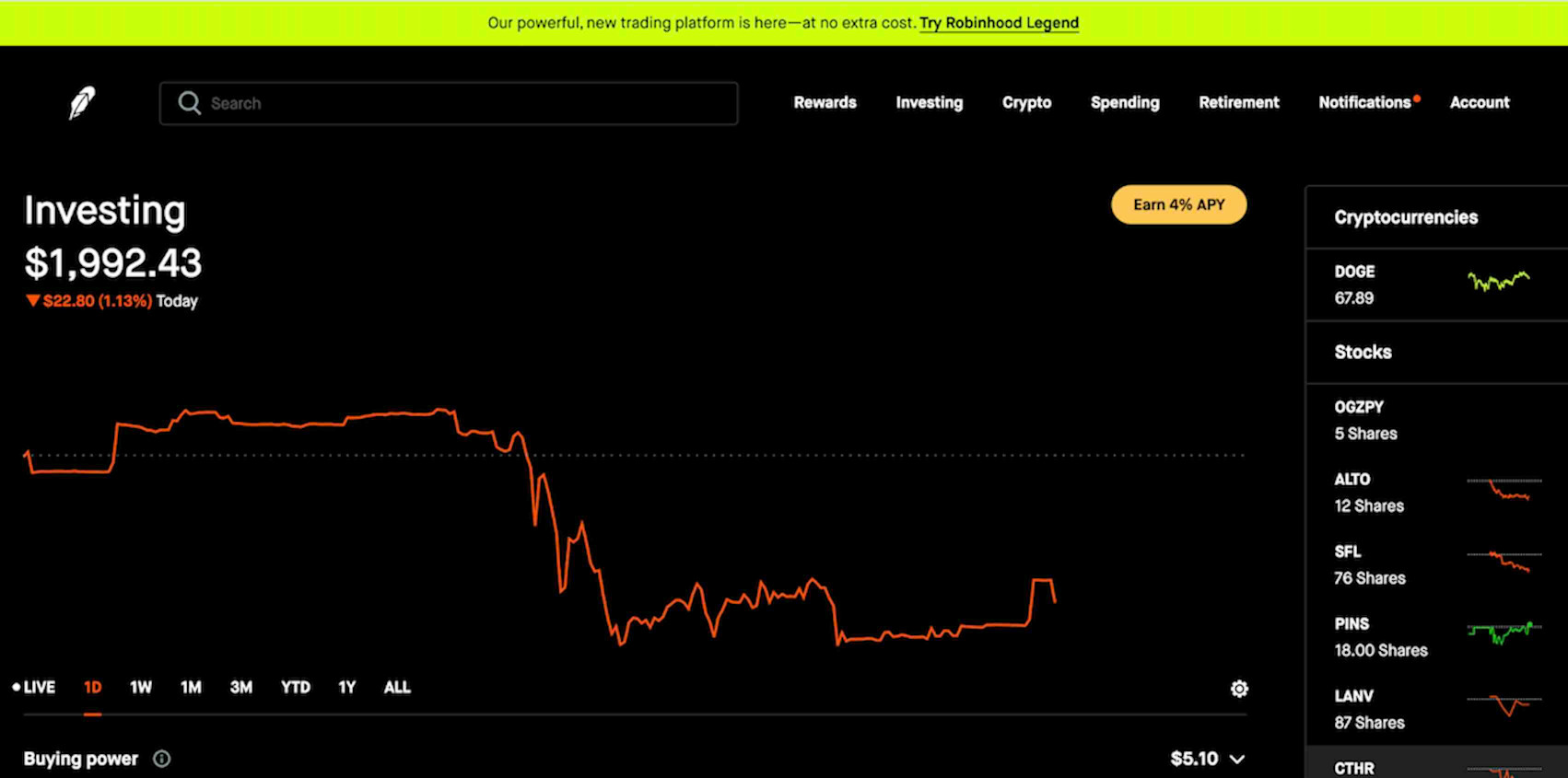
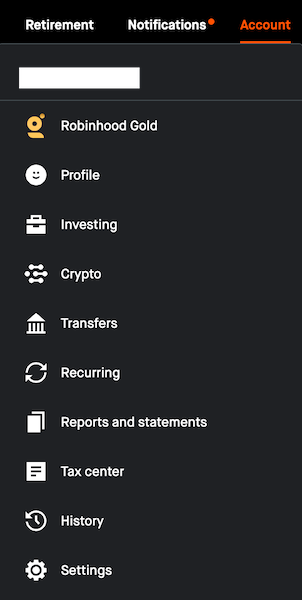
- Click “Account” in the top-right corner, then select “Crypto.”
- Scroll down to “API Trading.”
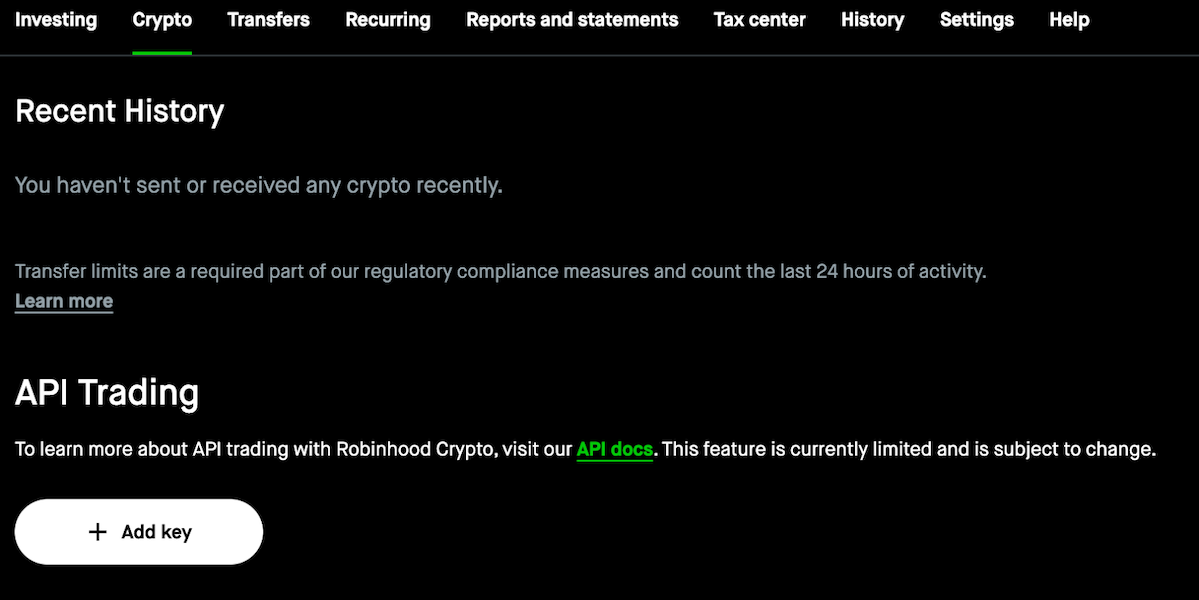
- Select “Add Key.” This will open a window with details to fill out, including key name, expiration date, allowed API actions, and public key.
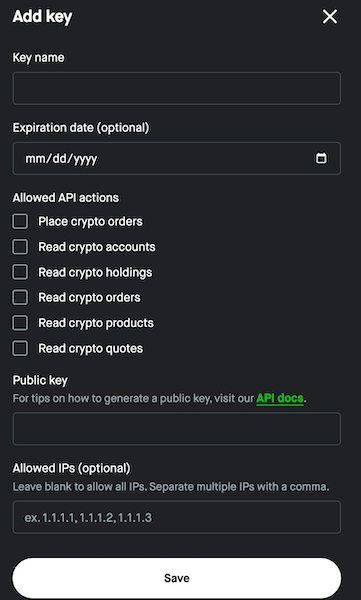
- You will need to generate a public and private key pair. There is a link under “Public key” on API guides which will explain how to do this: https://docs.robinhood.com/crypto/trading/#section/Authentication/Creating-a-key-pair
- Under API actions, enable all read actions.
- Skip setting any allowed IPs or expiration date for the API key.
- Click “Save” for the API key creation.
- You will receive a notification to authenticate the activity.
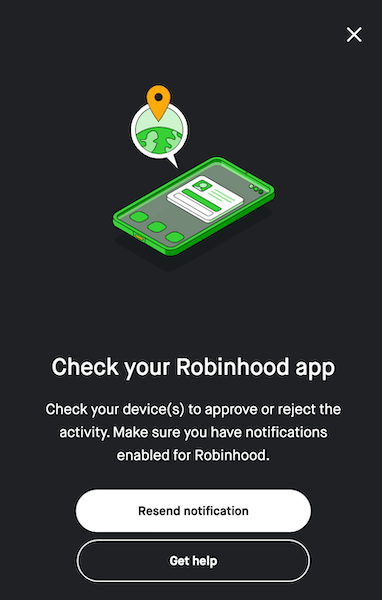
- Robinhood will then display the API key.
On Crypto Tax Calculator
- Log in to Crypto Tax Calculator, navigate to the Accounts page and search for Robinhood in the “Add account” menu.
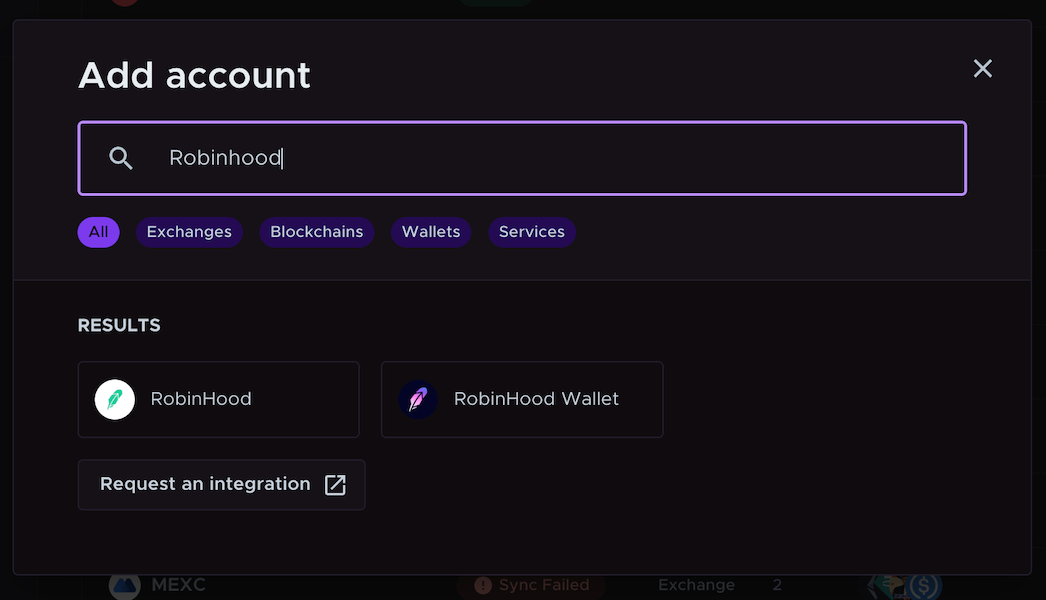
- Select “Sync via API” and paste in your API Key and Secret.
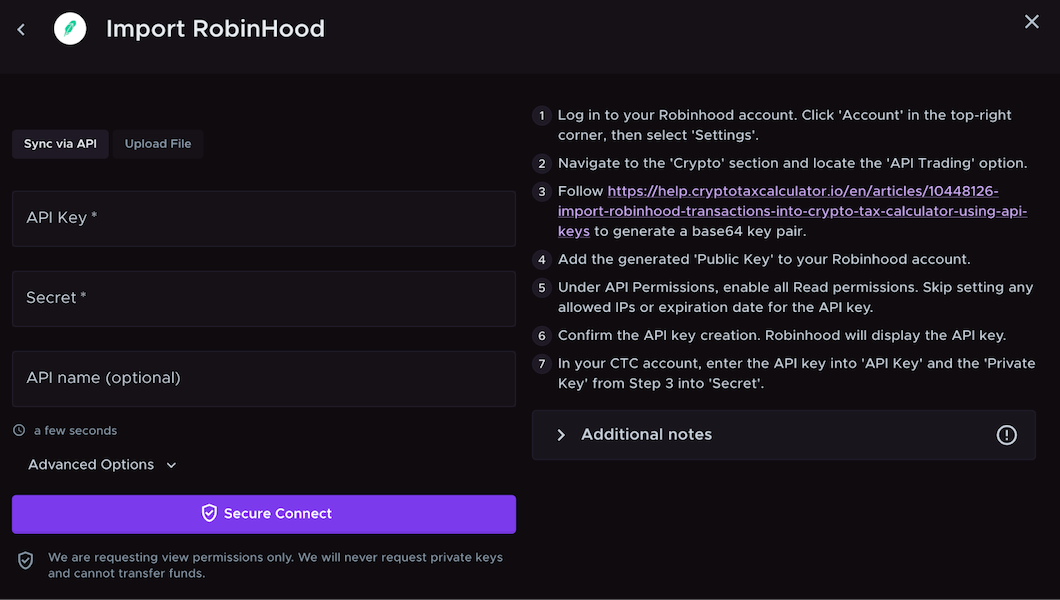
- Wait for the API to sync, and then review your transaction data.
Using a CSV upload
The alternative to using an API is downloading your transaction data and uploading the files to Crypto Tax Calculator. If you’d prefer to import via CSV, follow the instructions below to import your data.
On Robinhood
- Log in to your Robinhood account.
- Click 'Account' in the top-right corner, then select “Tax Center.”
- Your CSV documents will be available under “Robinhood Markets Consolidated Transactions.”
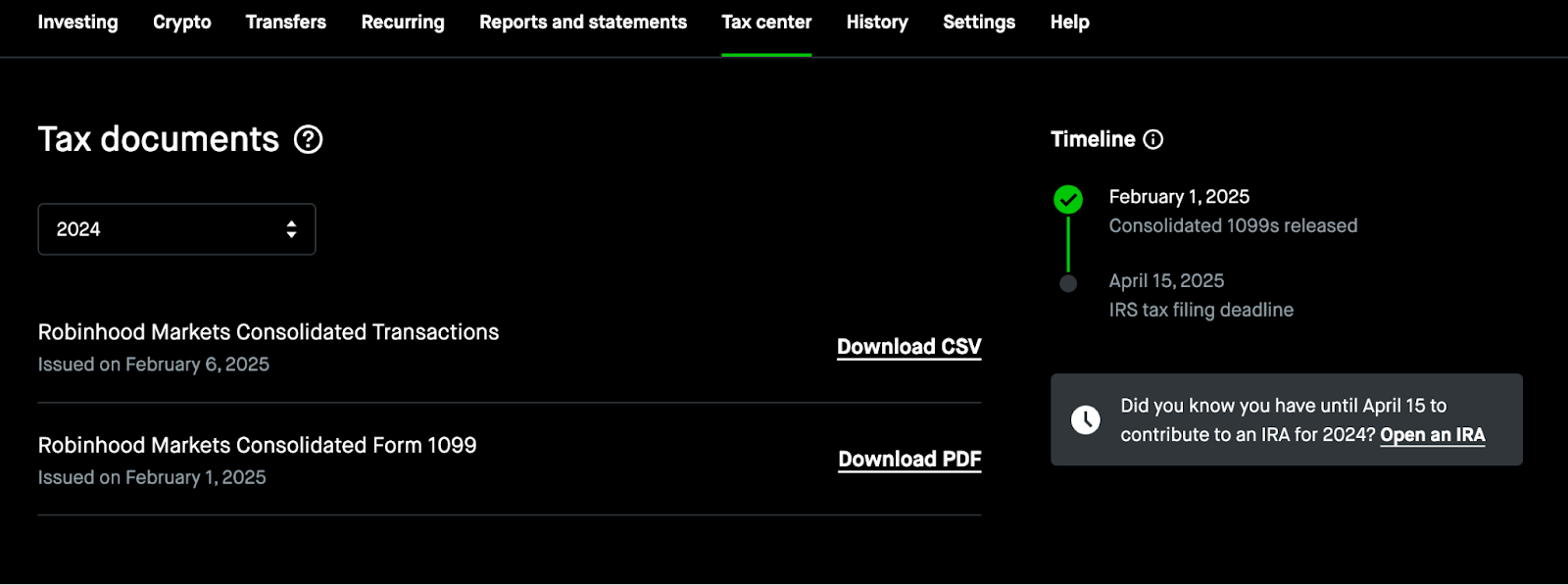
- Click “Download CSV.”
- Once you have your file(s), convert from PDF to CSV if necessary.
- Re-format the file(s) into CTC’s advanced CSV format.
On Crypto Tax Calculator
- Log in to Crypto Tax Calculator, navigate to the Accounts page and search for Robinhood in the “Add account” menu.
- Upload your CSV file(s) by clicking “Upload File” and then “Import Robinhood CSV.”
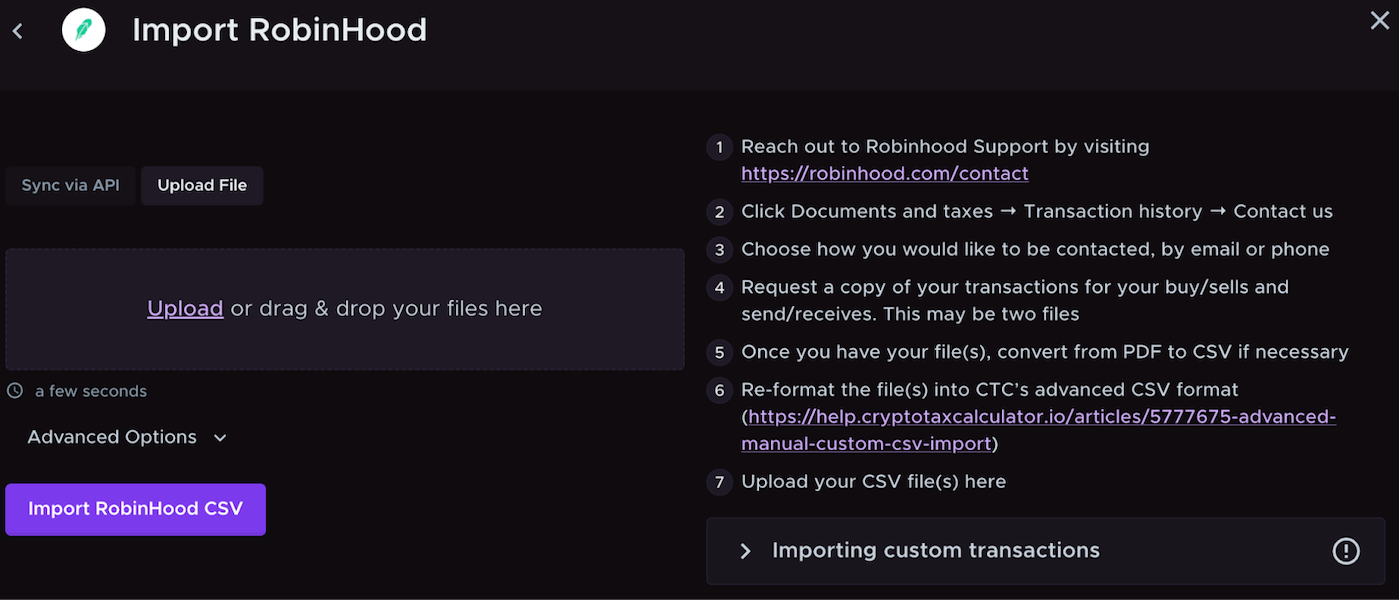
9. Wait for the file to upload, and then review your transaction data.
Wrapping Up
Once you have uploaded all your crypto data from Robinhood into Crypto Tax Calculator, our platform can calculate your portfolio breakdown and crypto tax obligation. If you can’t upload your transactions, you may add them individually on the review transactions page.
Sources
- Crypto Tax FAQ, Robinhood
- About Form 1099-MISC, Miscellaneous Information, IRS, 2025
- About Form 8949, Sales and other Dispositions of Capital Assets, IRS, 2025
- Taxes and Forms, Robinhood
{{robinhood-cta-basic}}
De informatie op deze website is van algemene aard en houdt geen fiscaal, boekhoudkundig of juridisch advies in. Het is opgesteld zonder rekening te houden met uw doelstellingen, financiële situatie of behoeften. Voordat u op basis van deze informatie handelt, dient u de geschiktheid van de informatie te overwegen, rekening houdend met uw eigen doelstellingen, financiële situatie en behoeften, en professioneel advies in te winnen.
Summ (voorheen Crypto Tax Calculator) wijst alle garanties, toezeggingen en garanties af, expliciet of impliciet, en is niet aansprakelijk voor welk verlies of welke schade dan ook (inclusief menselijke of computerfouten, nalatigheid of anderszins, of incidentele of gevolgschade) voortvloeiend uit of in verband met, enig gebruik van of vertrouwen op de informatie of adviezen op deze website. De gebruiker moet als enige de verantwoordelijkheid aanvaarden die verband houdt met het gebruik van het materiaal op deze site, ongeacht het doel waarvoor dergelijk gebruik of dergelijke resultaten worden toegepast. De informatie op deze website is geen vervanging voor gespecialiseerd advies.
FAQ

James Edwards has been active in the cryptocurrency industry for over 10 years. He is an avid user of DeFi and believes in the promise of a user-owned and operated web.
His expertise as a cryptocurrency journalist has seen him contribute to publications such as Nasdaq, CoinMarketCap and CoinTelegraph.