How to Report Crypto Taxes with ATO myTax 2024
A complete step-by-step guide to filing your crypto taxes with the ATO through myTax using Crypto Tax Calculator's ATO myTax report.
Key takeaways
- Crypto is classified and taxed as property by the ATO. Capital gains tax (CGT) applies when you sell crypto for a profit, and income tax applies to crypto earned via rewards like staking.
- You need to collect all of your crypto transaction data for the financial year and calculate any income earned and your capital gains/losses.
- You report your crypto activity in your annual tax return using the ATO’s myTax portal (or through a registered tax agent).
Given the popularity of myTax in Australia as the ATO’s official online platform for tax reporting, it’s important to understand how to report your crypto profits, losses, and income alongside your regular income and capital gains.
To accurately report your crypto transactions on myTax, you will need to calculate and enter both your crypto capital gains and losses, and any crypto income (like staking rewards or airdrops).
Summ can help you track your gains and losses, calculate your capital gains, and get ATO-ready reports in minutes.
Get started with a quick overview of how to report your crypto tax in myTax, or keep reading for detailed step-by-step instructions with screenshots from the ATO’s myTax portal.
Save yourself hours of calculations with Summ. Get a crypto tax report in minutes.
Step 1: Gather your documents and data
Accurate crypto tax reporting in Australia starts with thorough recordkeeping, as required by the ATO. Before lodging your tax return through myTax, you’ll need to collect a full summary of your crypto transactions for the financial year. This includes any:
- Buys and sells
- Swaps
- Staking rewards
- Mining income
- Airdrops
- Crypto used for purchases or payments
- Transfers between wallets (to identify non-taxable events)
The easiest way to do this is to use tax software like Summ which will automatically analyse your transaction history once you connect your exchange accounts or wallets.
Alternatively, most exchanges will let you download a CSV or excel file with your transaction history and relevant information, which can be used to manually calculate your taxes. If you're unable to get this information from your exchange or wallet, then you may need to keep your own records.
For each crypto transaction, the ATO expects you to have the following information to report it on your taxes:
- A description of the crypto asset
- The date you acquired and sold the asset and supporting receipts
- The value in AUD at the time of the transaction
- The cost base (including purchase price, transaction fees, and other relevant costs)
- The resulting capital gain or loss
- Records of any accounting or legal fees you’ve paid or tax software you’ve used
- Digital wallet records and keys
You can wait until you're preparing to file your tax return to gather these documents and transaction data. However, keeping records throughout the year will likely be easier (and more accurate) so they're ready to go when tax season rolls around.
Step 2: Set up myTax to prepare and personalise your return
To lodge your tax return with myTax, you’ll need to set it up first. Start by creating a myGov account – or using your existing one – to connect to the ATO. From your linked services you will then select ‘Manage tax returns’ to report your tax. You will then need to calculate and report CGT, income, and deductions. If you’re in the middle of filling out the forms but need more time to calculate, you can save what you’ve done so far and come back to myTax at any point.
Here’s how you can prepare your crypto taxes in myTax:
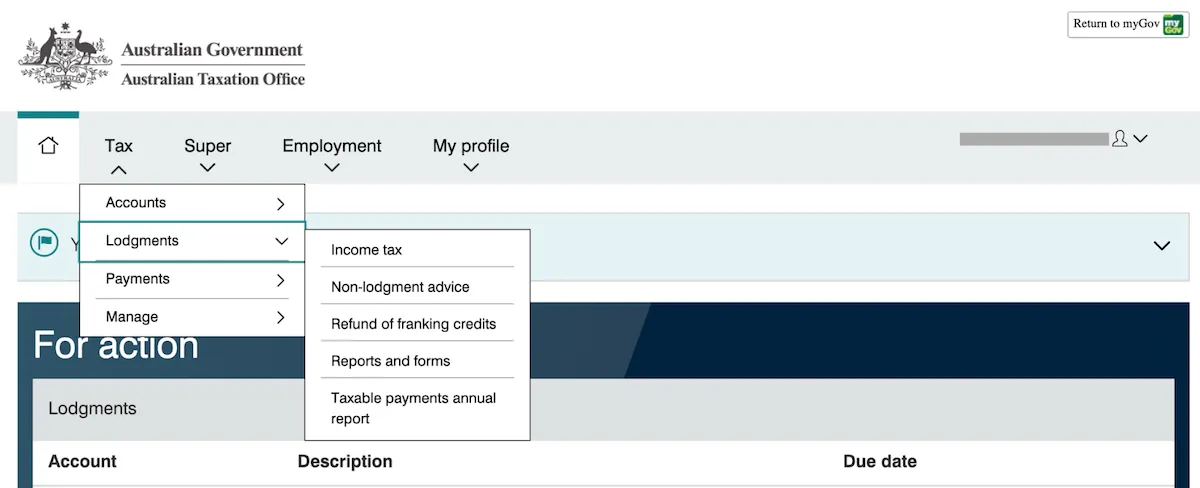
- Sign into your myGov account and make sure you’ve linked your account to the ATO to access myTax. Then select Tax → Lodgements → Income tax
- Click ‘Prepare’ for your 2024-2025 Individual income tax return.
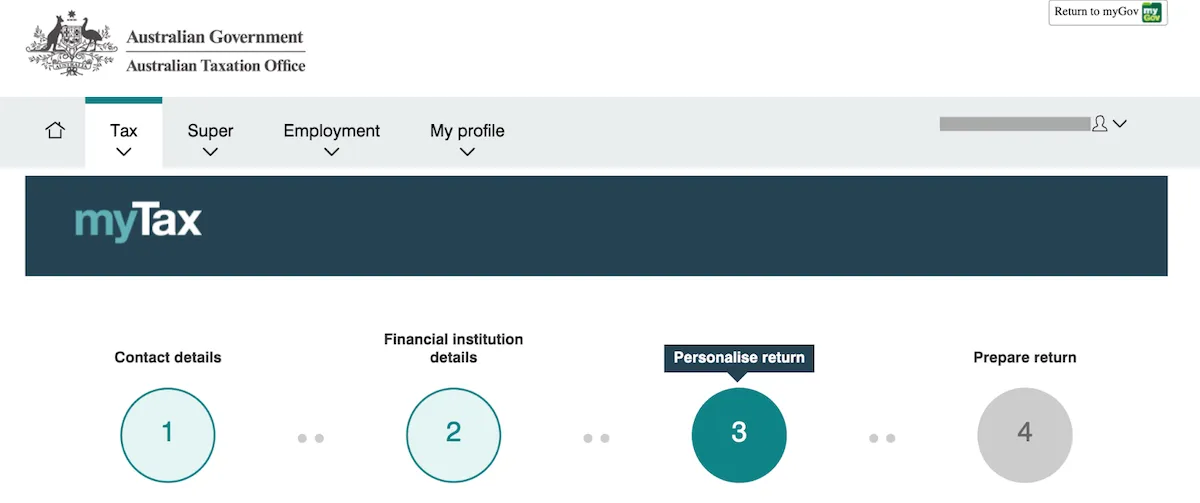
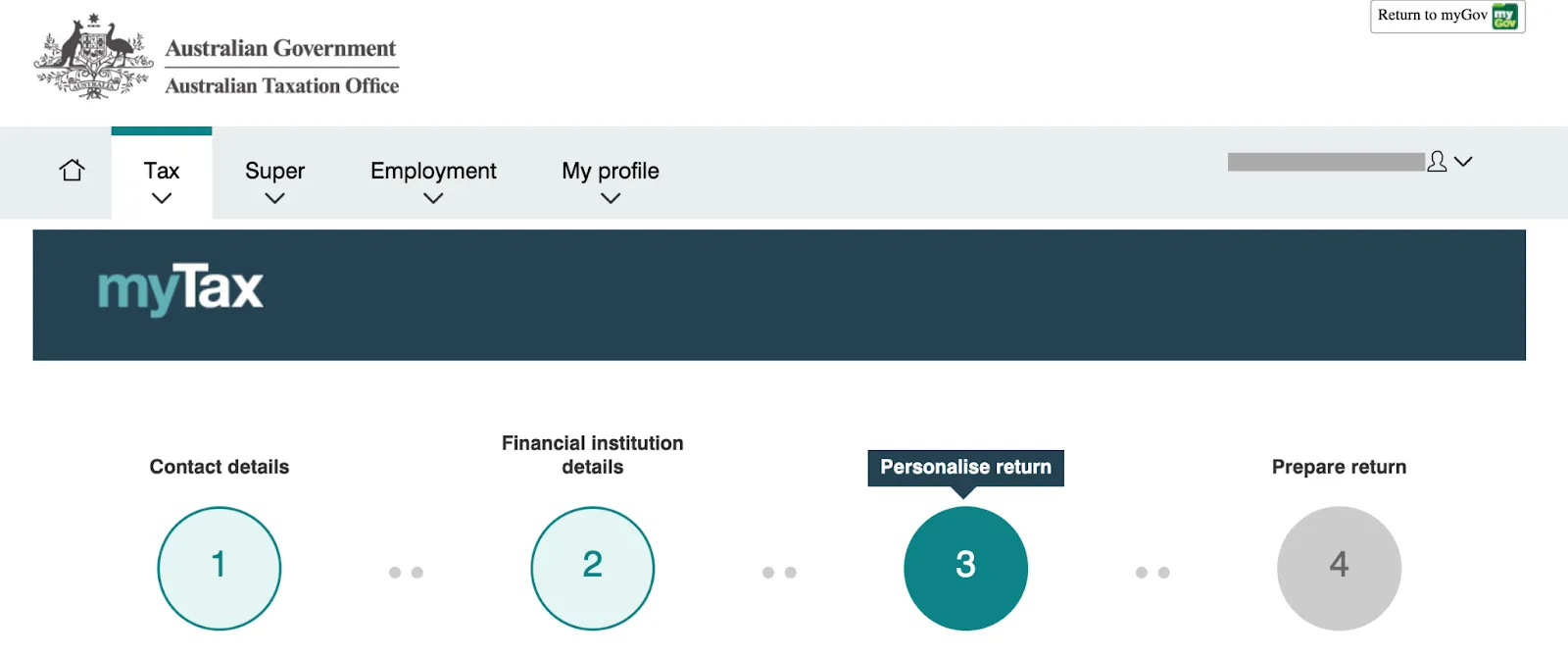
- Make sure your contact and banking details are up-to-date. Then select ‘Personalise return.’
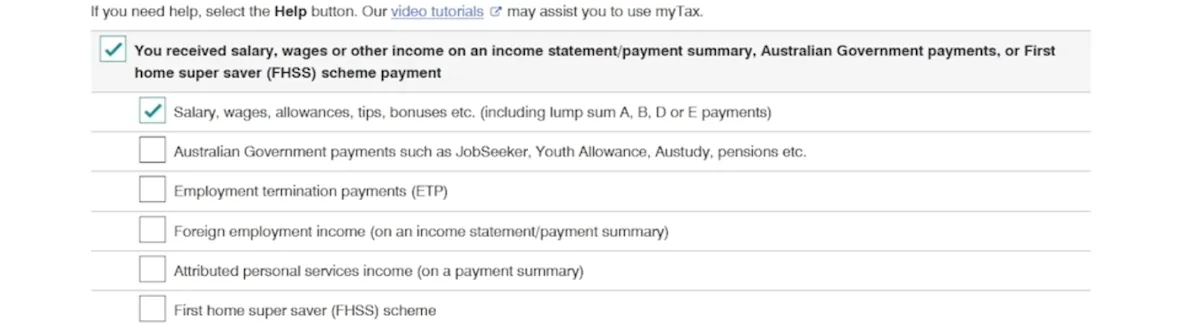
- Fill out the relevant boxes for your regular income. Note: some of the boxes may already be selected, if the ATO has received information from your employer, bank, crypto exchange, or another organisation. Most of your pre-fill tax information will be available by late July.
Step 3: Calculate your capital gains and losses
Whenever you dispose of crypto at a profit or loss, a capital gains event is triggered. To figure out how much tax you might owe, you need to calculate your capital gains and losses for each transaction. You’ll need to:
- Identify each individual capital gains tax (CGT) event. If you’ve conducted hundreds, or thousands of transactions, a crypto tax calculator like Summ can help you automatically identify your overall capital gains and losses.
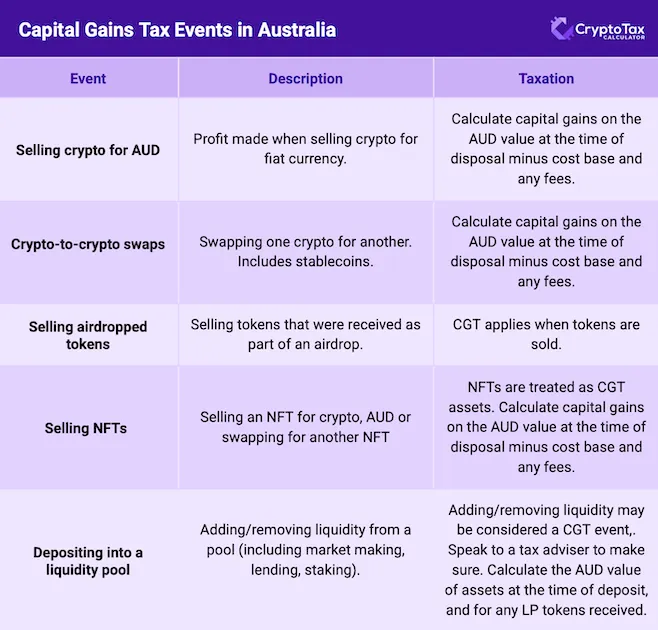
- Figure out the cost base of your crypto. Your cost base is what you paid for the crypto in AUD, plus any additional fees such as gas, transfer, or brokerage fees.
Figuring out the cost base can be more complicated when you have multiple transactions of the same token at different times and prices. When this happens, the order in which you calculate disposals can impact your tax owed. The two common methods for determining order are:
- FIFO (First In, First Out): You sell your earliest purchase first
- LIFO (Last In, First Out): You sell your most recent purchase first
The accounting method you choose can impact both the cost base and if you qualify for the 50% CGT discount – since it only applies to assets held for more than a year. Since FIFO takes into account your earliest purchases first, it could increase the chance of you receiving the 50% CGT discounts if you’ve held those assets long term.
Still confused? Summ can automatically figure out your cost basis for you based on ATO rules. You can also choose the accounting method that works best for your situation. If you have a lot of transactions or get stuck figuring out your cost base, Summ can help automate the tricky calculations to make this process a lot easier.
Use Summ to calculate your capital gains, income and deductions and get a report in minutes – ready for myTax
Step 4: Report your capital gain/loss on myTax
After calculating your gains or losses, you need to report them on your tax return. To report your capital gains and losses on myTax, go to ‘Personalise return’.
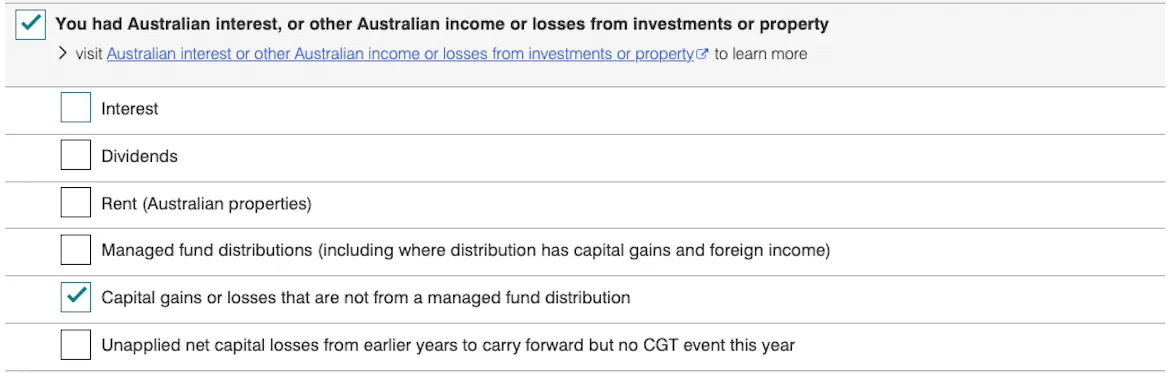
You will need to add in your crypto capital gains. Refer to your Summ Capital Gains Report. If you have capital gains or losses from crypto activity, select ‘Capital gains or losses that are not from a managed fund distribution’.
Step 5: Calculate your income from crypto activities
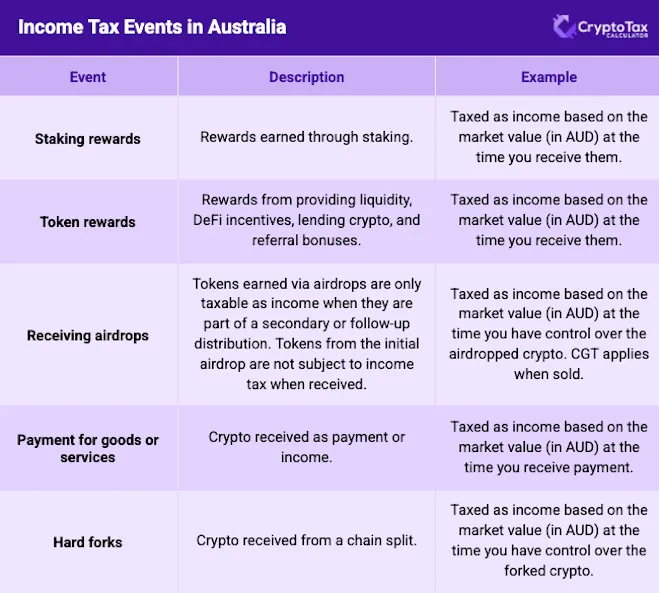
Not all crypto activity counts as a capital gain. Certain crypto activities are considered income, and you’ll need to report it on your tax return. For example, if you’ve earned crypto through mining, staking, rewards, or airdrops, the ATO treats this as ordinary income, similar to wages.
To figure out your income, you’ll have to keep track of the fair market value in Australian dollars at the time each income event occurred. This value also becomes your cost base if you get rid of the assets down the road, so you could also pay CGT if you sell for a profit.
Step 6: Report your income from crypto on myTax
To report your crypto income on myTax, go to ‘Personalise return’.
Next, check your Summ Income Report. If you received income from airdrops, interest, staking rewards, or royalty, select ‘You had other income not listed above (including employee share schemes)’. Staking rewards are considered to be income by the ATO.

Step 7: Calculate any deductions
As a crypto investor, you may be able to deduct expenses related to your investment activity – such as your Summ subscription. The ATO groups these expenses under interest, dividend, and other investment income deductions. You don’t have to be running a business to claim these deductions, as long as they have a clear connection to income-producing activities.
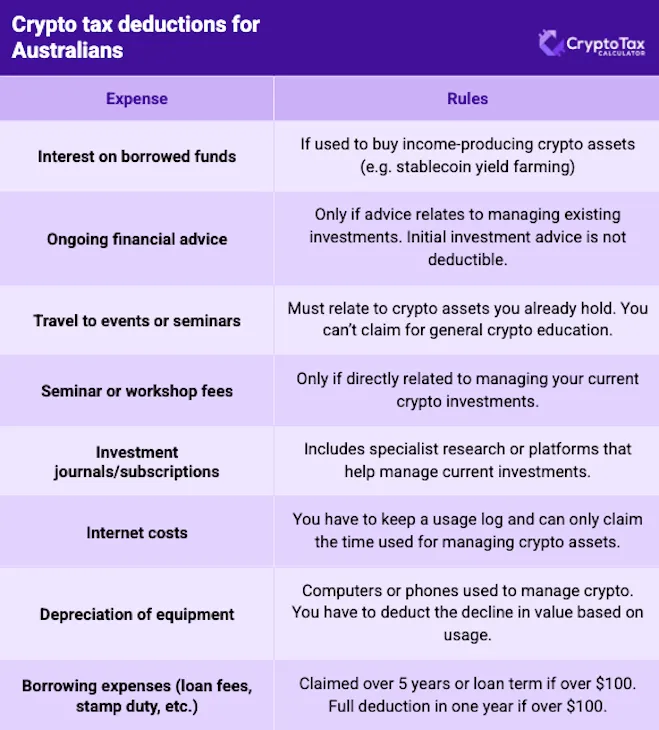
Note: Keep in mind that brokerage, gas, and transfer fees are not deductible as income expenses. These are added to the cost base for CGT purposes.
Step 8: Report deductions on myTax
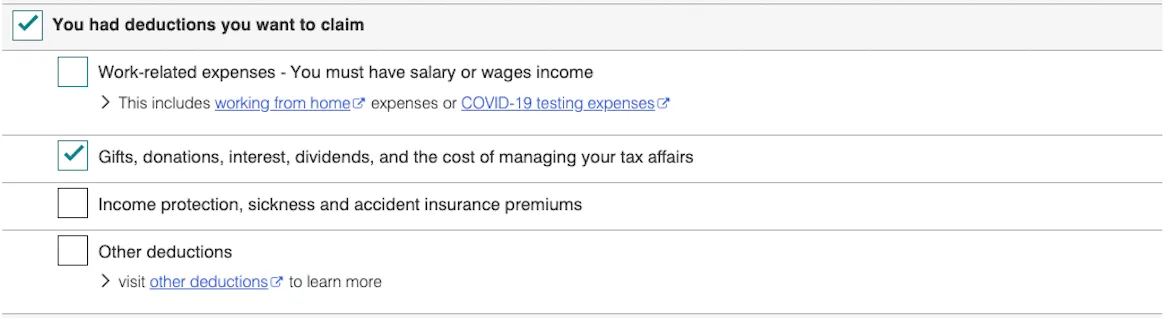
Where you report deductions on myTax depends on the type of deduction. First click ‘Personalise return’.
If you want to claim the subscription cost of Summ, select ‘Gifts, donations, interest, dividends, and the cost of managing your tax affairs’. Alternatively, the subscription cost could be added to ‘Other deductions’.
Step 9: Review and submit your tax return
Once you’ve added in your capital gains and losses, and deductions, make sure you add in all your other tax data (if it hasn’t already been prefilled for you). This includes regular income, any other investments you might have, and other deductions.
After you’ve completed all the relevant sections, click ‘Next’ at the bottom of the screen and then head to the ‘4 – Prepare return’ page.
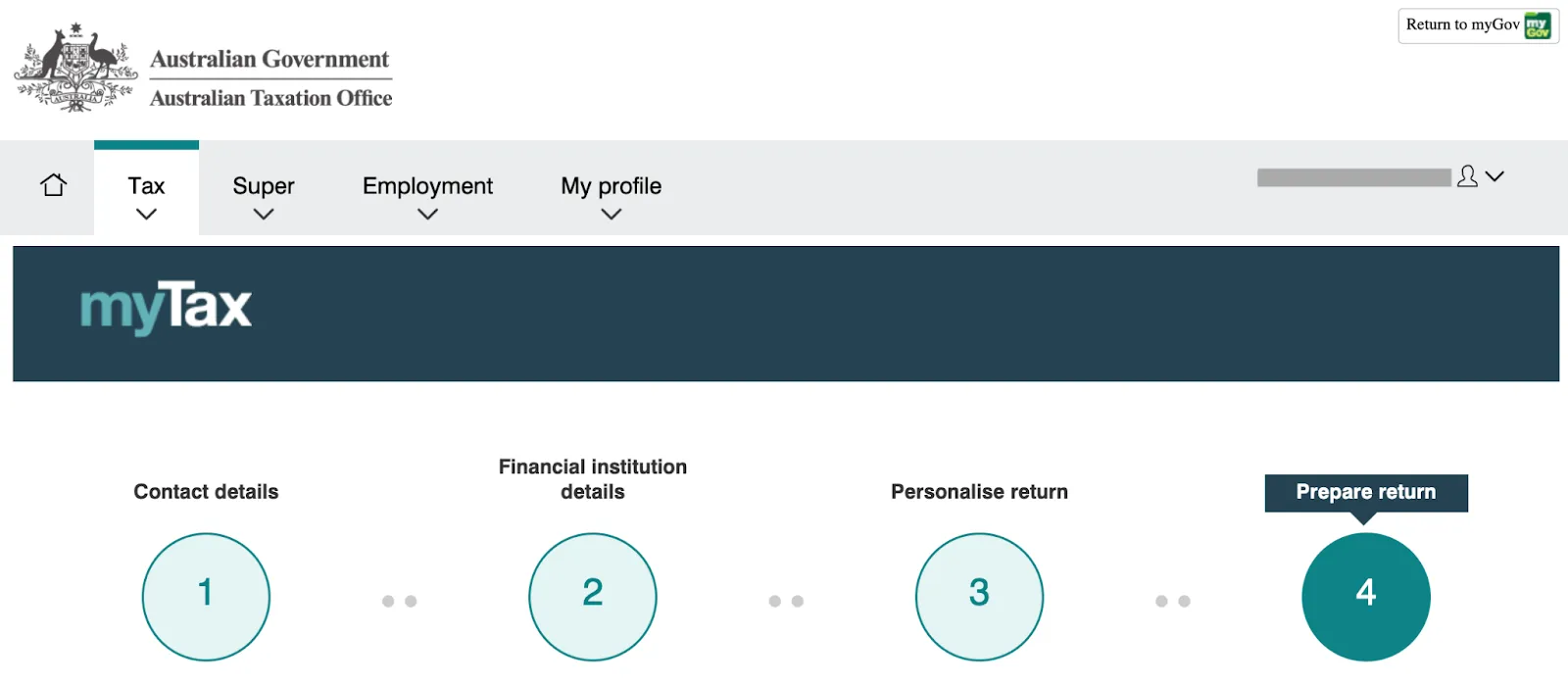
On the ‘Prepare return’ page you can review and edit any information. Make sure you review all your information and tax data to make sure it’s accurate. Once you are happy with everything click ‘Lodge’.
How do I report my crypto losses on MyTax?
If you’ve made a capital gain from trading crypto during the financial year, you’ll have to report it on your tax return through myTax or your accountant. The good news is that if you’ve made a loss on crypto, this can also help reduce the amount of taxes you owe.
Your crypto losses can be used to offset any capital gains you’ve made during the financial year, including investments such as crypto, property, and shares. For example, if you made $1,000 in capital gains from crypto and $250 in capital losses, you’d subtract the losses from the gains. As a result, you would only have to pay taxes on the $750 gain.
When your losses exceed your gains, you can’t claim a deduction for the difference. However, you can carry forward unused losses to help reduce capital gains down the line.
To report crypto losses on myTax:
- Navigate to the ‘Capital gains or losses that are not from a managed fund’ section under ‘Personalise return’.
- Add each crypto disposal event, such as selling, swapping, or spending crypto – and include details like acquisition date, disposal date, cost base, proceeds, and loss.
- Summ can simplify this process by importing your crypto transaction data from all your wallets, providing you with the overall capital gain or loss to enter into myTax.
How do I report my staking rewards on MyTax?
In Australia, crypto staking rewards are treated differently to crypto sales for tax purposes.
While crypto sales result in capital gains, staking rewards are treated as a form of income.
For example, let's say you can earn 20% with crypto staking. You stake 1,000 coins and, in return, earn an additional 200. The Fair Market Value of the 200 coins at the time you receive dominion and control over them is considered income, and you'll have to report it on your tax return for the financial year.
Staking rewards and other forms of crypto income – including earnings from airdrops or yield farming – are reported in the ‘Other Income’ section of your myTax return.
Note: You'll also be subject to capital gains taxes if and when you eventually sell, trade, or spend your crypto staking rewards, just as you do with other crypto you hold.
How to report my crypto airdrops on MyTax?
In Australia, the tax treatment of crypto airdrops is the same as that of staking rewards. They are considered taxable income, even if you didn’t do anything to actively receive an airdrop.
You'll pay income taxes on the value of the crypto you receive at the time you receive it. And if you eventually sell those coins, you'll also pay capital gains taxes on the difference between your cost base (meaning their value when you received them) and the amount you sell them for.
Just like staking rewards, earnings from airdrops and other forms of crypto income – including yield farming – are reported in the ‘Other Income’ section of your myTax return.
Sources
- Records you need to keep, Australian Government: Australian Taxation Office, 2024
- Lodge your tax return online with myTax, Australian Government: Australian Taxation Office, 2024
- How to personalise your return in myTax, Australian Government: Australian Taxation Office, 2024
- A quick demonstration of lodging with myTax, Australian Government: Australian Taxation Office, 2024
- Cost of managing tax affairs, Australian Government: Australian Taxation Office, 2024
- ATO ‘blitz’ sparks warning for millions of Aussie cryptocurrency investors: ‘Trigger an alert’, Yahoo, 2025
- ATO ramps up data matching in cryptocurrency crackdown, ABC News, 2019
- Decentralised finance and wrapping crypto, Australian Government: Australian Taxation Office, 2024
The information provided on this website is general in nature and is not tax, accounting or legal advice. It has been prepared without taking into account your objectives, financial situation or needs. Before acting on this information, you should consider the appropriateness of the information having regard to your own objectives, financial situation and needs and seek professional advice. Summ (formerly Crypto Tax Calculator) disclaims all and any guarantees, undertakings and warranties, expressed or implied, and is not liable for any loss or damage whatsoever (including human or computer error, negligent or otherwise, or incidental or Consequential Loss or damage) arising out of, or in connection with, any use or reliance on the information or advice in this website. The user must accept sole responsibility associated with the use of the material on this site, irrespective of the purpose for which such use or results are applied. The information in this website is no substitute for specialist advice.

Patrick (https://www.linkedin.com/in/patrick-m-35a4501b1/) has been in the crypto industry for the last 7 years and is passionate about sharing his knowledge and experience in web3. Patrick has also covered the crypto space for Forbes Advisor (https://www.forbes.com/advisor/au/author/patrick-mcgimpsey/), Canstar (https://www.canstar.com.au/author/patrick-mcgimpsey/) and The Chainsaw (https://thechainsaw.com/author/patrick-mcgimpsey/).
More resources

Tax Clarity for the Way You Actually use Crypto
We're excited to announce a partnership with XPlace, Solana's first true crypto credit card.
Read More
The Crypto Neobank You Need Isn't What You Think
Most crypto neobanks are custodied fintech in disguise. Here's what a real Bitcoin onchain neobank looks like, and why the difference matters to your tax position.
Read More
Product Update: Kalshi, MegaETH, CoinRabbit, Bittensor, and WhiteBIT support now live
Summ adds support for Kalshi, MegaETH, CoinRabbit, and WhiteBIT. Import your trades via API or CSV and automatically calculate your crypto tax gains and losses across the platforms.
Read More